
Automatically Generate Commit Messages with AI: Step-by-Step Setup
In this article
Writing clean and consistent commit messages is hard. Doing it several times a day — even harder. That’s why we built AI Commit by Mavka: a tool that automatically creates high-quality commit messages based on your code changes, directly inside IntelliJ IDEA.
In this guide you’ll learn:
- why AI-generated commit messages improve your workflow
- how to install and configure the AI Commit By Mavka plugin
- how to generate commit messages in different styles
- how the plugin helps teams stay consistent and productive
Let’s begin.
Why Use AI to Generate Commit Messages?
Most developers don’t enjoy writing commit messages — and it shows: inconsistent formats, missing context, unclear descriptions, and rushed wording.
AI Commit By Mavka solves this by:
- generating commit messages automatically
- keeping them consistent across the entire team
- saving minutes on every commit (which adds up fast)
- supporting both Conventional Commits and the enhanced Mavka Style
Manual vs AI-generated commit messages
| Criteria | Manual writing (average) | With AI Commit By Mavka |
|---|---|---|
| Time to draft message | 35-45 sec | 3-5 sec |
| Adherence to team format | Depends on memory | 100 percent (template-based) |
| Avg. words per commit | 6-12 | 20-35 (concise summary + body) |
| Reviewer satisfaction* | 3.2/5 | 4.6/5 |
*Internal survey run by a fintech company after piloting Mavka across 15 developers in June 2025.
So, let’s start using it.
AI Commit By Mavka — Install and Configure
Step 1 — Get a Subscription
- Go to the Pricing section on the AI Commit By Mavka website.
- Click Start Your Free Trial or Start Free.
- Enter your details and start for free.
- You will see your License Key — copy it.
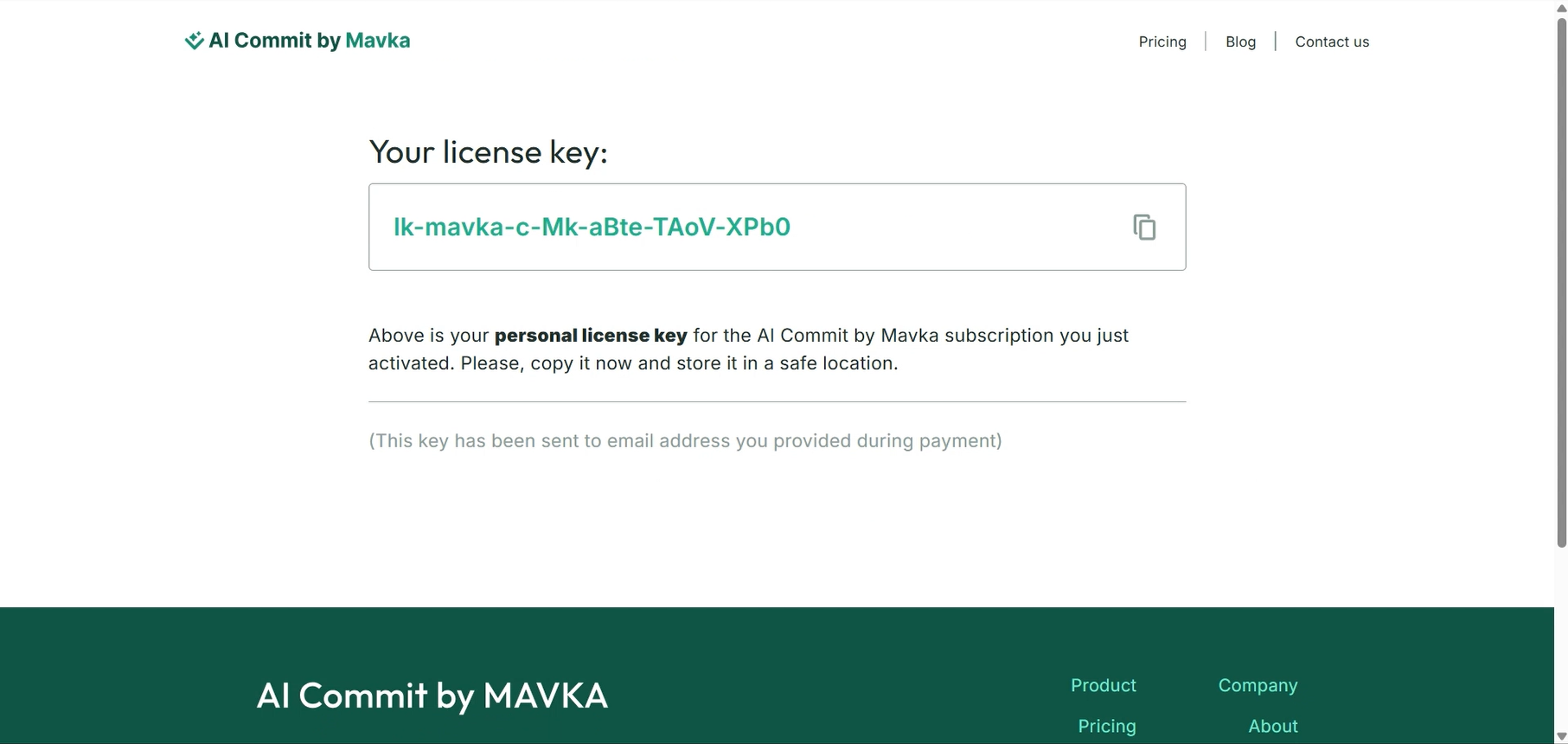
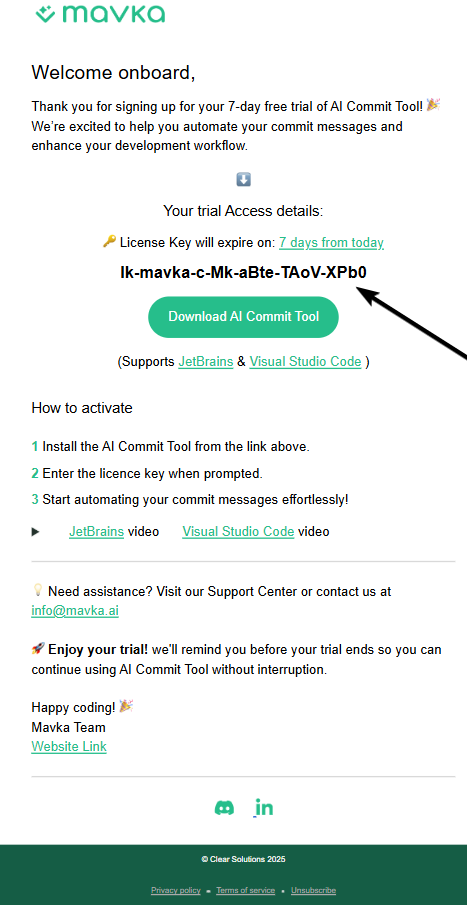
- The key will also be delivered to your email.
Step 2 — Install the Plugin in IntelliJ IDEA
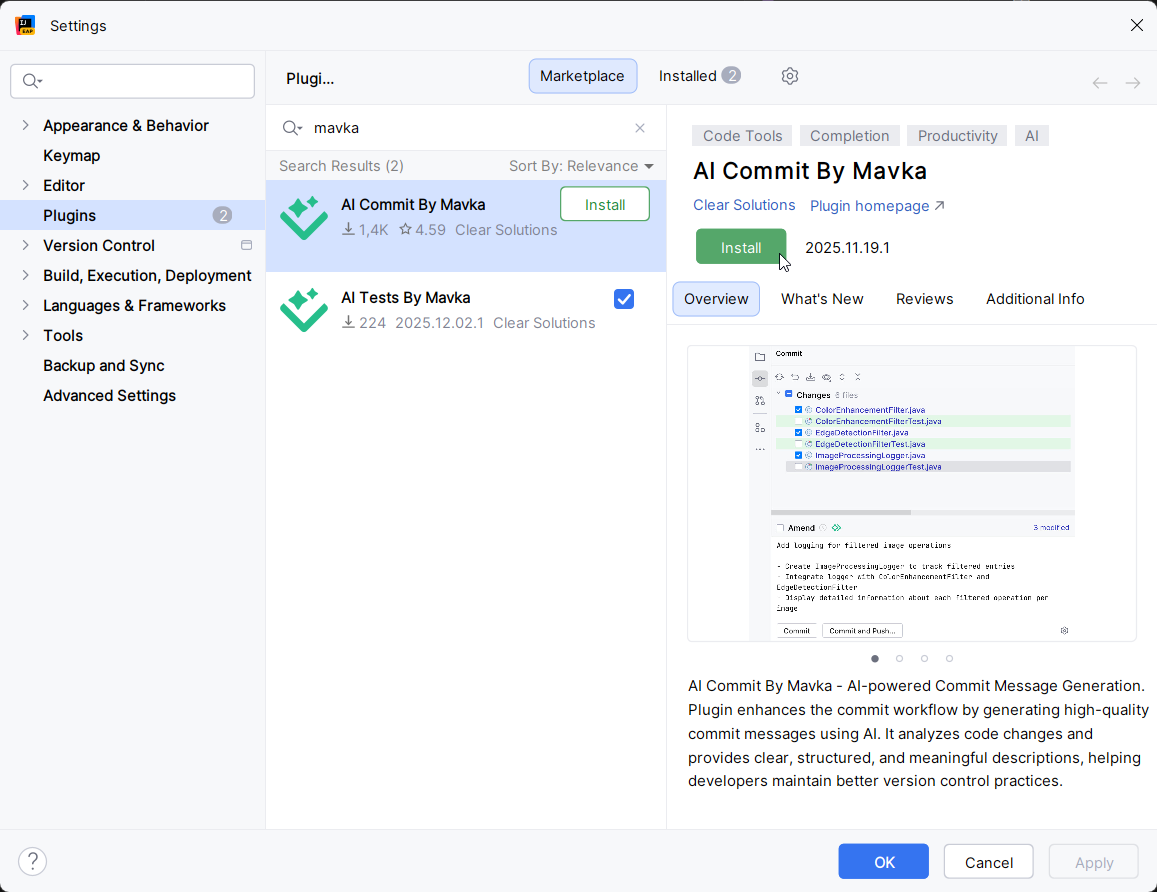
- Open Settings (Ctrl + Alt + S)
- Search for AI Commit By Mavka
- Click Install and Apply.
Step 3 — Configure the AI Commit By Mavka Plugin
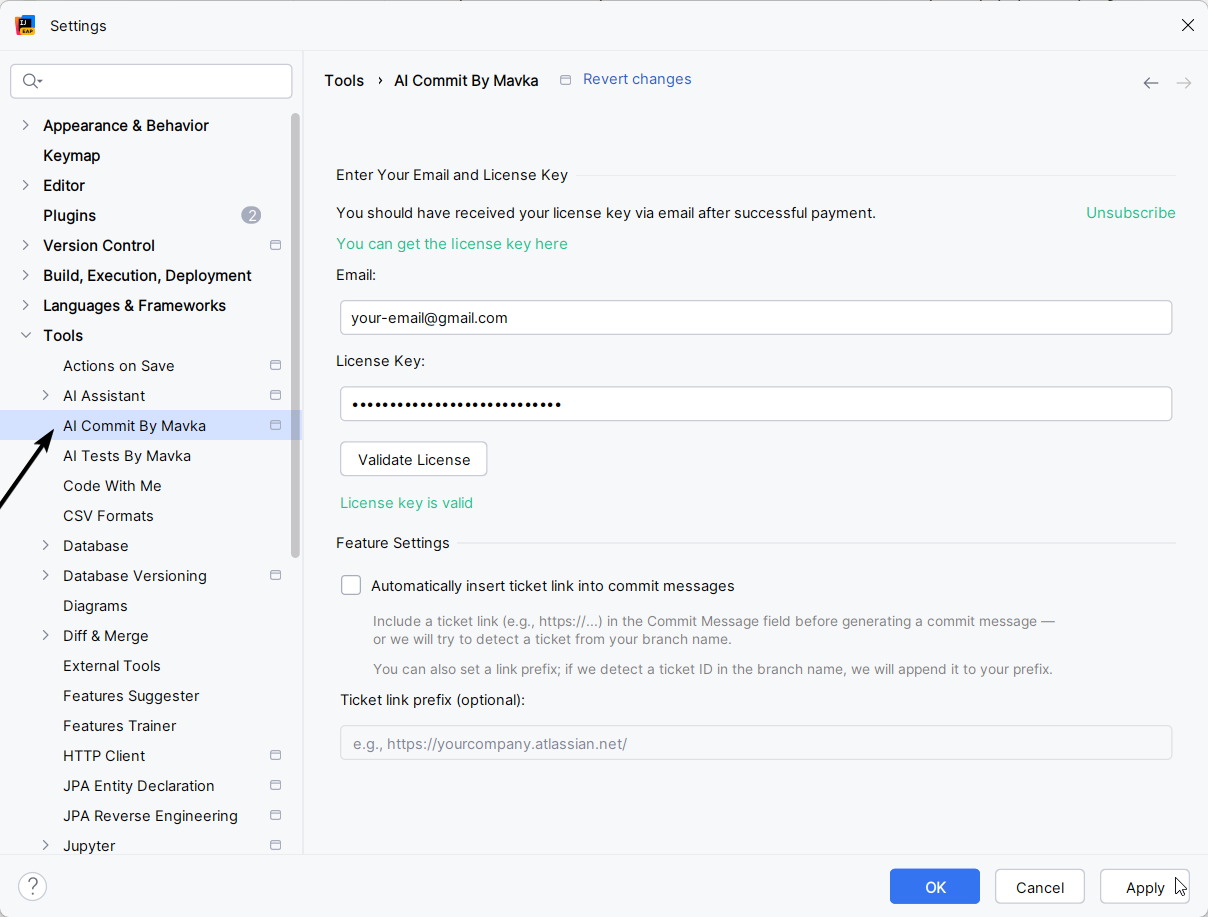
- Open Tools → AI Commit By Mavka Settings
- Enter your email and license key
- Click Validate License
- Press Apply
Step 4 — Optional Settings
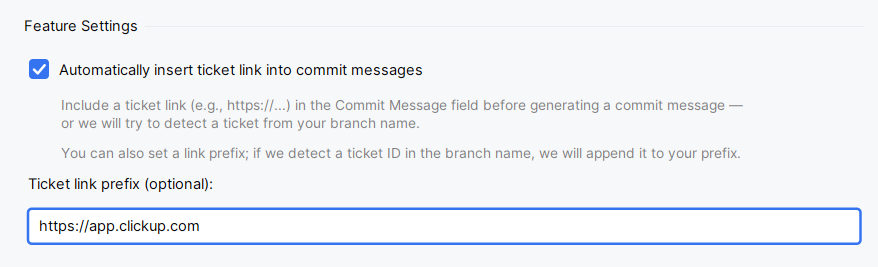
You can enable additional features, such as automatically inserting a ticket link into your commit message. Enable it anytime in the settings panel. You can read more about this AI Commit By Mavka feature in this article.
How AI Commit By Mavka Works
Once installed, AI Commit By Mavka automatically analyzes the changes in your commit, understands the context, and produces a clean, structured commit message. For the same code changes, you can generate commit messages in two styles.
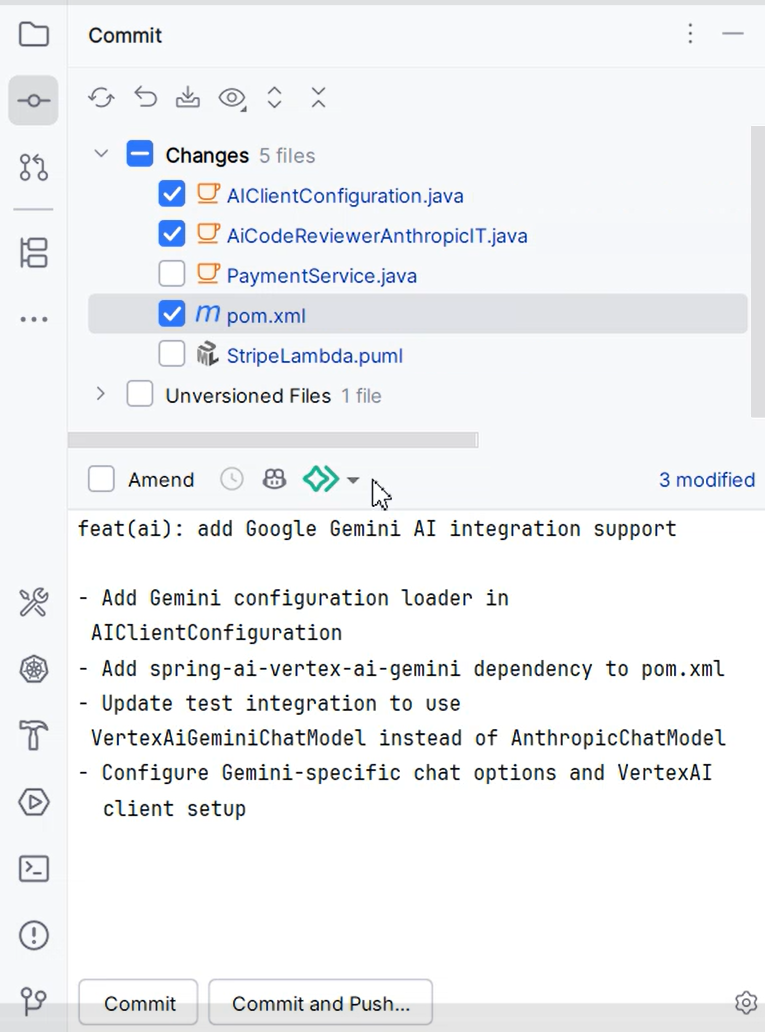
Mavka Style
An improved, human-friendly format that is concise but expressive. Perfect for companies and teams that want commit messages that feel “written by a person”.
Example:
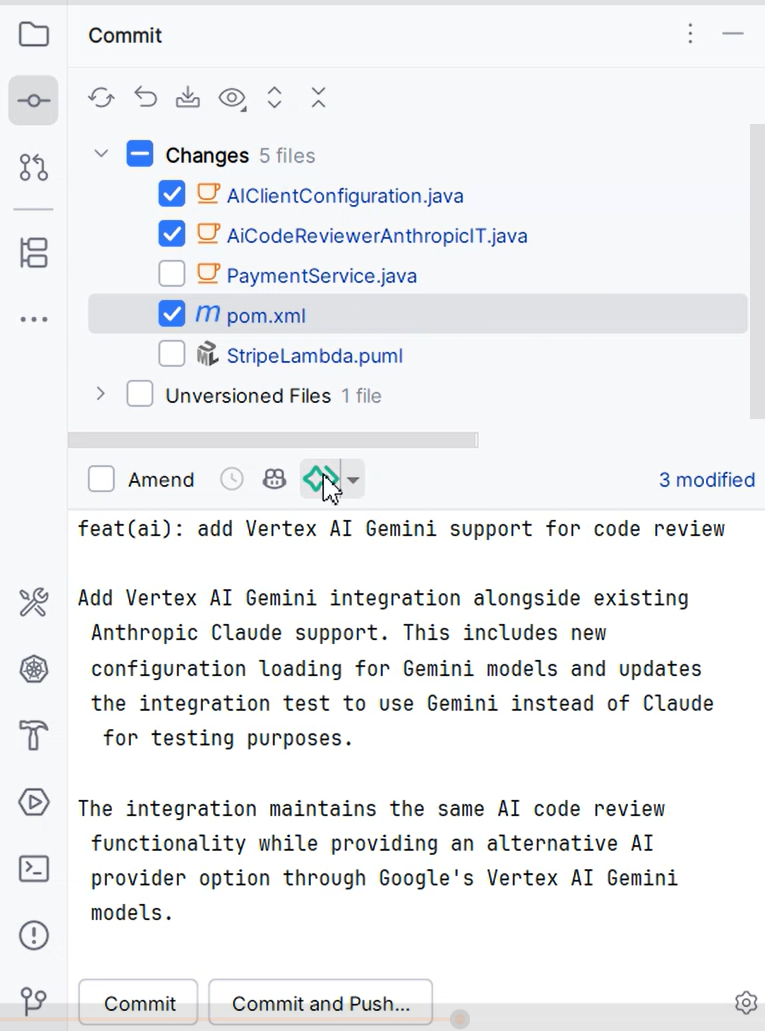
Conventional Commits
A widely-used industry standard.
Example:
Switching Styles
Before generating a commit message, you can switch between styles. In the Commit window:
- Click the arrow next to the Mavka icon
- Choose Mavka Style or Conventional Commits

- Click the Mavka icon to generate a commit message
That’s it! You can switch anytime — even generate both for comparison.
Ready to Enhance Your Commit Messages?
AI Commit By Mavka turns a routine, repetitive task into an effortless one. Install it once, connect your license, choose your preferred style — and let AI take care of your commit messages.
Start using AI Commit By Mavka for free today and make every commit clean, consistent, and professional.
To better understand how to use AI Commit By Mavka and apply our best practices in writing commit messages, read this article.
Happy committing!
Ready to transform your Git workflow?
Join thousands of developers who've already made their commits smarter and more efficient. Try Mavka AI Commit today and experience the difference.